Toby's Interface & Glossary
In this article
To start using Toby, open a new tab. Toby replaces Chrome's new tab page, so your saved tabs are the first thing you see. To save the page you're on without leaving it, click the Toby icon in Chrome's toolbar. See Extension Menu.
The words Toby uses
- Workspace: everything you keep in Toby, and the people you share it with. You can have more than one, for example one for work and one for home. Each workspace has its own plan.
- Space: a set of collections, usually one per project or area of your life. A Space is private or public. See Private & Public Spaces.
- Personal: your own Space. Only you can see it.
- Collection: a named group of saved tabs, like "Trip to Lisbon" or "Q3 research".
- Card: one saved tab inside a collection. Click it to open the page.
- Save session: saves the unpinned tabs in a window so you can reopen them later. See Saving Session for how to save and reopen them.
Finding your way around
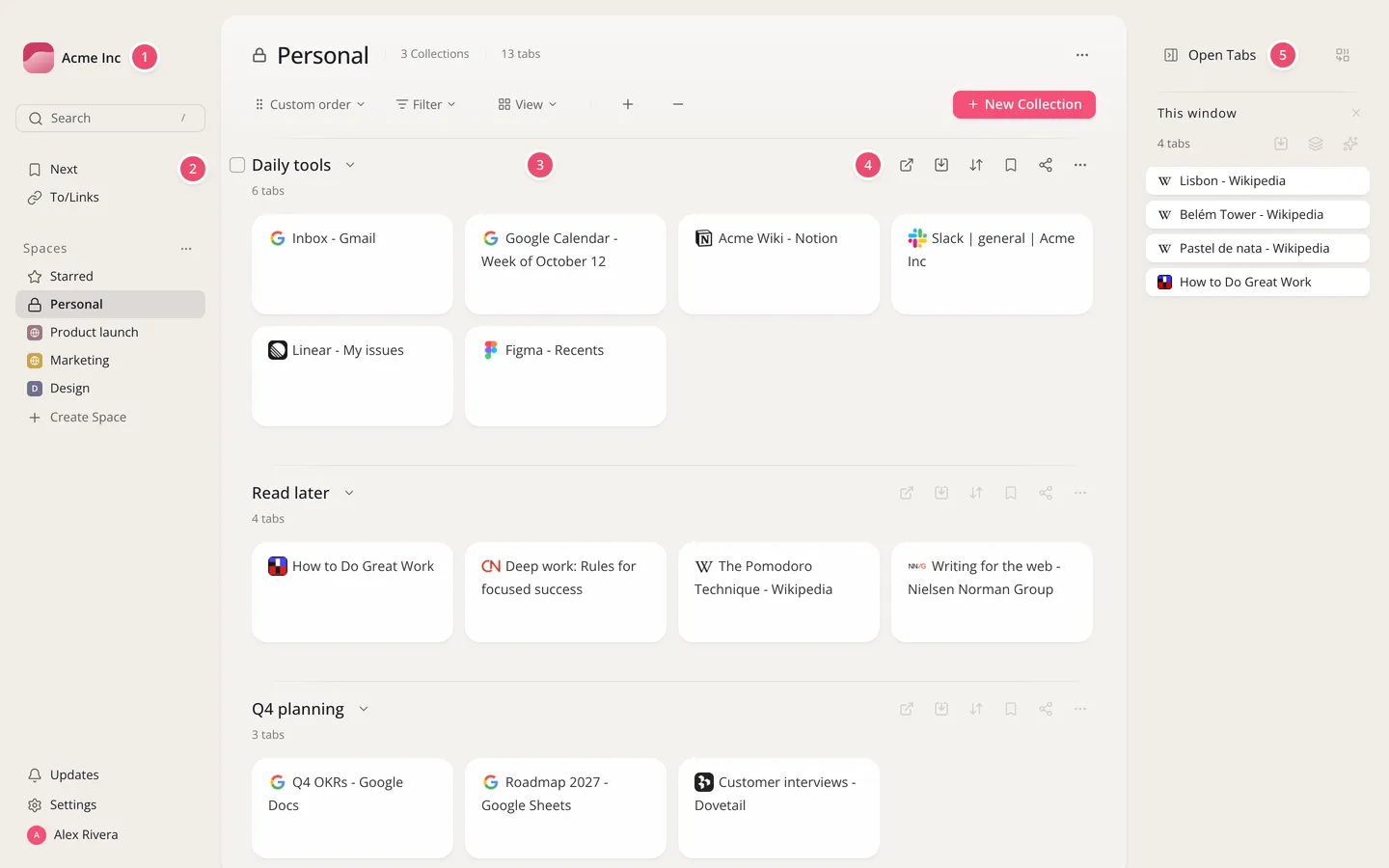
- Workspace name, top left: the workspace you're in. Click it to switch to another workspace or create one.
- Left sidebar: Search, Next and To/Links at the top. Under Spaces: Starred, Personal, your Spaces and Create Space. At the bottom: Updates, Settings and your name.
- Collections, in the middle: the collections in the Space you opened, with their cards. The buttons above them sort, filter and change the view, and expand or collapse every collection.
- Collection tools: hover a collection to open all its tabs, save your open tabs into it, add it to Next or share it.
- Open Tabs, on the right: the tabs open in your browser right now, window by window. Drag a tab onto a collection to save it, or click Save session to save a whole window.
A few places in the sidebar:
- Next: a short list of pages you want to get to soon.
- To/Links: short links you open by typing
to/and a name in the address bar. - Starred: the collections you starred, all in one place.