Skip to content

Upload a profile picture

As of Toby v0.7.25, you can now upload a logo for your organization. It will be displayed in the left sidebar.

How to upload a profile picture?

Step 1: Open the settings menu

  • Click on the "user" icon at the bottom of the left sidebar

An arrow pointing at the user icon at the bottom of the left sidebar

Step 2: Open Edit account

  • Click "Edit account" at the top of the settings menu, located just under your name and email.

The settings menu with Edit account circled, under the name and email

Step 3: Open the upload modal

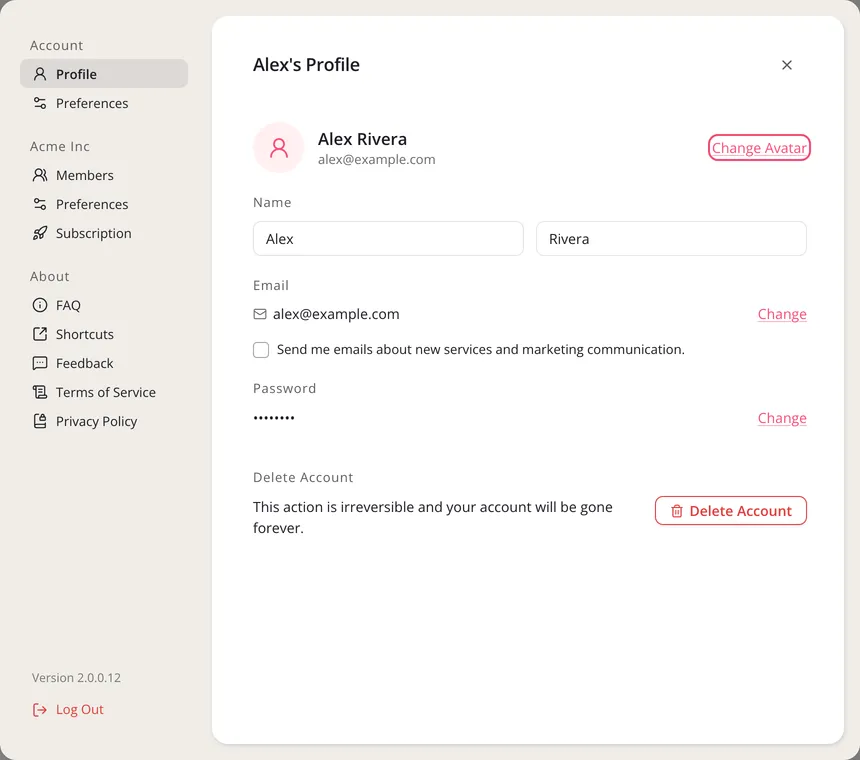
  • Under account preferences, click on "Change" next to the user icon.

Account preferences with the Change link circled, next to the user icon

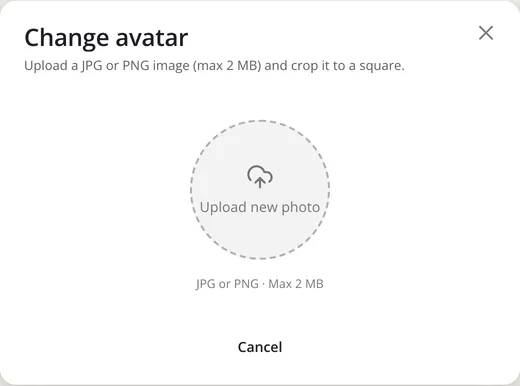
Step 4: Select a file from your computer

  • Your file needs to be either a .png, .jpg or jpeg and less than 2MB in size. Square images work best.

A file browser with the image file profile-pic.jpeg selected

Step 5: After the file is uploaded, you can see a preview of your profile picture

  • If you are happy with it, click update.

The Update avatar dialog showing a preview of the profile picture, with Cancel and Update buttons

Step 6: The profile picture is now displayed in the left sidebar

The new profile picture shown at the bottom of the left sidebar