Saving Session
In this article
Saving a session saves the tabs in a window so you can reopen them later. Use it when you're done with a project for the day, or before you close a window you might need again.
Pinned tabs aren't included. Unpin any pages you want Toby to save before saving the session.
Save a window
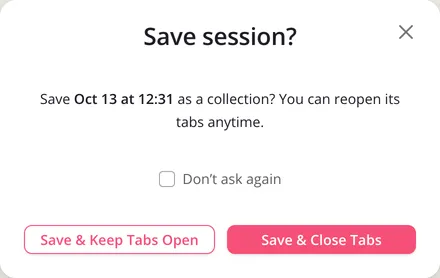
Saving a whole window creates one collection named with the date and time you saved it, like "Oct 13 at 14:05". To give it a name you'll recognise, double-click the name and type a new one.
From the extension menu
- Click the Toby icon in Chrome's toolbar.
- Pick the Space you want to save into, then click Save session at the top right of its collections.
- Click Save & Close Tabs, or Save & Keep Tabs Open.
From Toby
-
Open a new tab and go to the Space you want to save into.
-
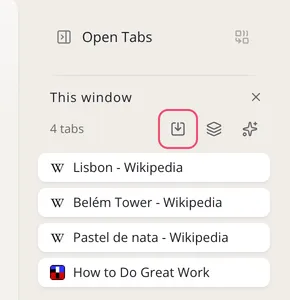
In the open tabs panel on the right, click Save session on the window you want to save.
-
Click Save & Close Tabs, or Save & Keep Tabs Open.
Save into an existing collection
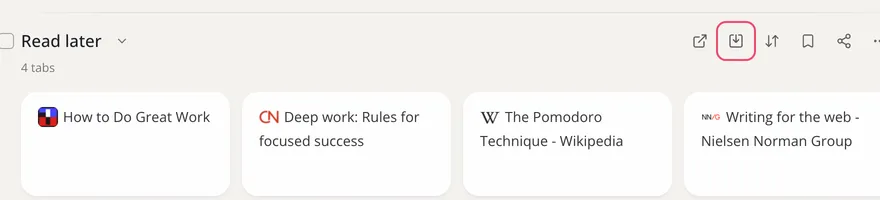
Hover the collection and click Save session, then Save & Close Tabs or Save & Keep Tabs Open. Your open tabs are added to the collection.
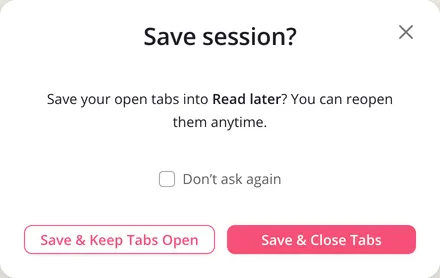
Tick Don't ask again and Toby skips the question next time. To change your mind, go to Settings, then Preferences, and switch Automatically close tabs on or off.
Opening a saved session
Open Toby, find the collection and open all its saved tabs at once.